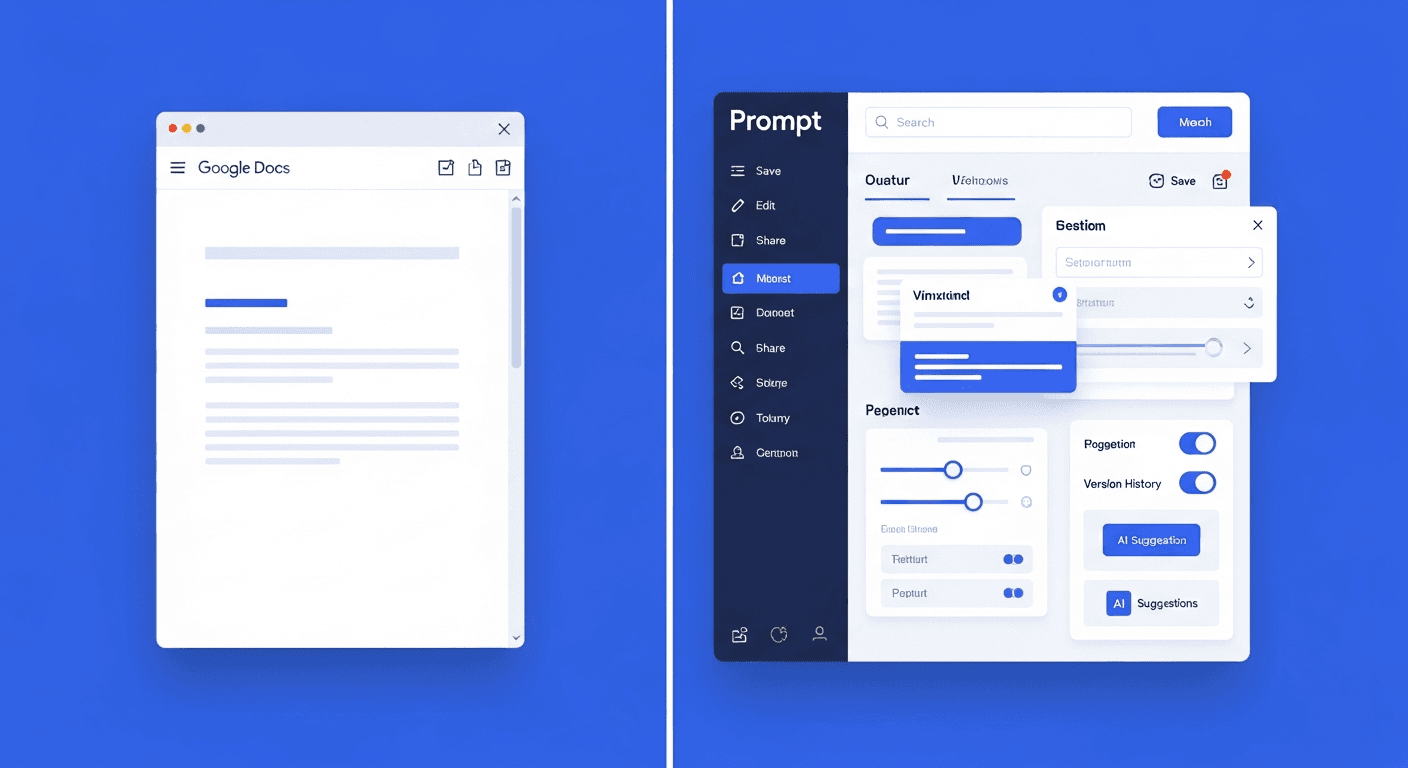
If you are saving AI prompts in a Google Doc right now, you are doing something sensible. A shared Google Doc costs nothing, it is already in your workflow, it is shareable with one link, and you can be up and running in under 10 minutes. There is no onboarding, no new tool to learn, and no subscription to justify. For most people starting out with large language models (LLMs) like ChatGPT, Claude, or Gemini, a Google Doc is the natural first step.
The honest question is not whether Google Docs works for prompts. It does - at small scale. The question is whether it is still working for you six months later, when your prompt collection has grown, your team has expanded, and your AI usage has become a daily habit rather than an occasional experiment.
This comparison is for people who already have a Google Docs prompt library and are deciding whether a dedicated tool is worth the switch.
What Google Docs Does Well for Prompt Management
Before getting into limitations, genuine credit is warranted. Google Docs has real advantages for this use case, and dismissing them would make this comparison dishonest.
Zero friction to start. There is no installation, no account setup beyond what you already have, and no decisions about structure that must be made before adding your first prompt. Create a document, paste a prompt, done. For someone experimenting with AI tools for the first time, this is the right way to begin.
Already in your workflow. If your team lives in Google Workspace - Docs, Sheets, Drive, Gmail - keeping prompts in Google Docs means they are findable alongside everything else. No context switching to a separate tool just to browse your library.
Free for individuals and small teams. Google Docs has no meaningful cost for standard usage. For a solo user or a team that shares prompts infrequently, there is no financial argument for a paid alternative.
Works well under 30 prompts. At small scale, a single Google Doc with clear headings and a table of contents is genuinely manageable. Ctrl+F finds what you need quickly. The cognitive overhead of navigating the document is low when the document is short.
Shareable with one link. Anyone with the link can view or edit the document. For a small team that needs everyone to see the same prompts, this is sufficient. No roles, no invitations, no admin work.
Collaboration is built in. Google Docs allows real-time co-editing with comments and suggestions. Teams can refine a prompt template together, leave notes about what worked, and track conversations in the margin.
Where Google Docs Breaks Down
These limitations are not hypothetical. They are the reasons people start searching for alternatives.
Access speed from inside an AI tool. To use a prompt stored in Google Docs while working in ChatGPT or Claude, the actual sequence is: open a new tab, navigate to Google Docs, find the document, Ctrl+F for the right prompt, select the text, copy it, switch back to the AI tab, paste. That process takes 30 to 45 seconds under normal conditions. It takes longer if Docs is slow to load or if you cannot immediately find the prompt. At 15 retrievals per day, this adds up to around 8 minutes of friction per person per day - more than 30 hours per year, per person.
No search from inside the AI interface. There is no way to reach your Google Docs prompt library from inside ChatGPT, Claude, or Gemini without tab-switching. A browser extension that overlays your prompt library directly inside the AI tool solves this problem. Google Docs cannot.
No variable templates. A variable template lets you define placeholders like {{audience}} or {{product_name}} that get filled in each time you use the prompt. Google Docs has no concept of this. You copy the prompt and manually edit the placeholders before pasting - which means inconsistency between uses, and the risk of sending a prompt with the placeholder still in it.
Version history is document-level, not prompt-level. Google Docs does offer version history, but it tracks changes to the entire document. If you edit one prompt out of 60, the version history shows the entire document in both states. There is no way to see the history of a single prompt, compare specific edits, or roll back one prompt to a previous version without affecting everything else.
Becomes unmanageable past 50 prompts. A Google Doc with 50 prompts and no internal structure becomes unwieldy. People stop using it consistently, which means prompts get saved in multiple places or not saved at all. At 100 prompts, it becomes a liability rather than an asset.
No granular team permissions. Google Docs sharing is binary: the document is either view-only or editable. There are no role-based permissions at the prompt level - no way to allow one person to edit prompts while another can only view them, or to create team-specific prompt sets with different access levels.
No direct insertion into AI tools. You cannot click a prompt in Google Docs and have it appear in the ChatGPT or Claude input field. Every retrieval is a manual copy-paste sequence.
Head-to-Head Comparison
| Feature | Google Docs | PromptAnthology |
|---|---|---|
| Setup time | Under 10 minutes | Under 15 minutes |
| Cost | Free | Free trial available |
| Max prompts before friction | ~30 | 300+ without degradation |
| Access speed from inside AI tools | 30-45 seconds (tab switching) | ~3 seconds (browser extension) |
| Variable templates | No - manual find-and-replace | Yes - native with fill-in forms |
| Version history | Document-level only | Per-prompt, automatic |
| Team permissions | View or edit only | Role-based access control |
| Browser extension access | No | Yes - overlays inside AI tools |
| Works inside ChatGPT / Claude / Gemini | No | Yes |
| Search from inside AI interface | No | Yes |
| Scales to teams of 10+ | Poorly | Yes |
Who Should Stick With Google Docs
This is the honest part. Not everyone needs to switch.
Individual users with fewer than 30 prompts. If your collection is small and you use AI occasionally rather than daily, Google Docs is completely adequate. The overhead of migrating to a new tool is not justified by the marginal improvement in access speed.
People who use AI a few times per week. If you retrieve prompts 3 to 5 times per week, the tab-switching friction is a minor inconvenience rather than a genuine productivity problem. The time math only becomes compelling at daily high-frequency usage.
Teams that have not committed to AI workflows yet. If your team is still in the exploratory phase - trying AI tools, evaluating what is worth standardizing - a Google Doc is the right scratchpad. Build the habit first, then build the infrastructure around the habit.
Situations where Google Workspace is the only approved tool. Some organizations have procurement constraints that limit which tools employees can use. If PromptAnthology is not approved and Google Workspace is, the question is moot.
Who Should Upgrade to a Dedicated Tool
Teams of 3 or more who share prompts regularly. Once multiple people are editing a shared prompt library, the lack of role-based permissions becomes a problem. Anyone with edit access can change or delete any prompt. There is no audit trail at the prompt level, no ownership, and no way to approve changes before they go live.
People who use AI 10 or more times per day. At high frequency, access speed is not a minor convenience - it is a structural cost. A 35-second tab-switching sequence versus a 3-second browser extension interaction represents 10 minutes of friction per day at 20 retrievals. That is recoverable time.
Anyone with compliance or audit requirements. If your organization needs to demonstrate what prompts were used, when, and by whom, Google Docs does not provide this. A dedicated tool with per-prompt version history and access logs does.
Anyone who has already lost a prompt they needed. If you have found yourself thinking "I know I wrote a great prompt for this last month but I cannot find it," your current system has already failed you. That prompt existed; the storage system did not protect it. See our guide on never losing an AI prompt for more on why this happens and how to prevent it.
Teams using multiple AI tools. If your team uses ChatGPT for some tasks, Claude for others, and Gemini for others, a browser extension that works inside all of them is the only way to maintain a single prompt library across all platforms. Google Docs requires the same tab-switching friction regardless of which AI tool you use.
For a broader look at options, see our complete guide to prompt management and our review of the best prompt management tools.
Migration: Moving From Google Docs to PromptAnthology
The migration is not complicated. Most people complete it in 20 to 30 minutes.
Step 1: Export or open your Google Doc. You do not need a formal export. Keep the Google Doc open in one tab and PromptAnthology open in another.
Step 2: Create your folder structure first. Before importing prompts, spend five minutes creating the category folders that match how you think about your prompts - by task type, by AI tool, by team function. This takes two minutes and makes the rest of the migration faster.
Step 3: Paste prompts directly. Select a prompt from the Google Doc, paste it into a new prompt in PromptAnthology, add a title and assign it to the right folder. Repeat. For 30 prompts, this takes about 15 minutes.
Step 4: Convert your most-used prompts to variable templates. Identify the prompts you use most often that have parts you customize each time. Replace the manually-edited sections with {{variable_name}} placeholders. These become fill-in forms the next time you use the prompt from the browser extension.
Step 5: Install the browser extension and test it. Open ChatGPT or Claude, trigger the extension, and retrieve one of your newly migrated prompts. This is the moment the difference becomes tangible.
Keep the Google Doc around for a few weeks if you prefer. Many people find they stop opening it naturally once the extension is part of their daily workflow.
For team migrations and shared prompt libraries, see our guide on building a shared prompt library for your team.
Frequently Asked Questions
Can I use Google Docs as a prompt library alongside PromptAnthology?
Yes, and some people do this deliberately. Google Docs is useful for long-form reference material: prompt engineering guides, brand voice documentation, notes about what has and has not worked with specific models. PromptAnthology handles the active prompt library - the prompts you retrieve daily and need in seconds. The two tools serve different jobs and do not conflict.
Is there a way to make Google Docs prompts accessible from inside ChatGPT?
Not natively. There is no official Google Docs browser extension that overlays your document content inside the ChatGPT or Claude interface. Third-party text expander tools can partially replicate this behavior, but they require managing a separate snippet library outside of Google Docs anyway. A purpose-built prompt manager with a browser extension is the direct solution.
How is PromptAnthology different from just using a bookmark to my Google Doc?
A bookmark gets you to the document. It does not get the prompt into the AI input field. You still need to open the document, find the specific prompt, copy it, and switch back to the AI tool. The browser extension eliminates that entire sequence - the prompt library surfaces inside the AI interface, and clicking a prompt inserts it directly.
What happens to my Google Docs prompt library after I migrate?
Nothing forces you to delete it. Keep it as a backup if that feels safer. Most people find they stop updating it within a week or two once the dedicated tool is handling their daily workflow. At that point it becomes a historical snapshot rather than a living library.
How does PromptAnthology handle team prompts differently from Google Docs?
Google Docs gives every editor equal access to every part of the document. PromptAnthology supports role-based permissions: team members can be given view, use, or edit access at the folder or prompt level. A team lead can curate a prompt library that others can use but not modify. An admin can see who used which prompt and when. None of this is possible in Google Docs without workarounds like separate view-only documents.
For more on team-specific prompt management, see our comparison against other tools in our best prompt management tools review, and how it compares to another popular option in our PromptAnthology vs. Notion comparison.
The Bottom Line
Google Docs is a legitimate starting point for prompt management. It is free, familiar, and gets you from zero to a working prompt library in minutes. At small scale and low frequency, it is good enough.
The limitations become real when your collection grows past 30 prompts, when your team needs to share and access prompts consistently, and especially when you are using AI tools heavily enough that 30 to 45 seconds of tab-switching friction happens 15 to 20 times per day. At that point, the tool that felt like a shortcut starts feeling like a drag.
The switch is not dramatic. Migration takes about 20 minutes. The browser extension makes the difference immediately obvious the first time you retrieve a prompt from inside ChatGPT without leaving the tab.
Ready to try it? Start a free trial of PromptAnthology. Migrate your Google Docs prompt library in 20 minutes and see whether the browser extension changes your daily AI workflow - no commitment required.