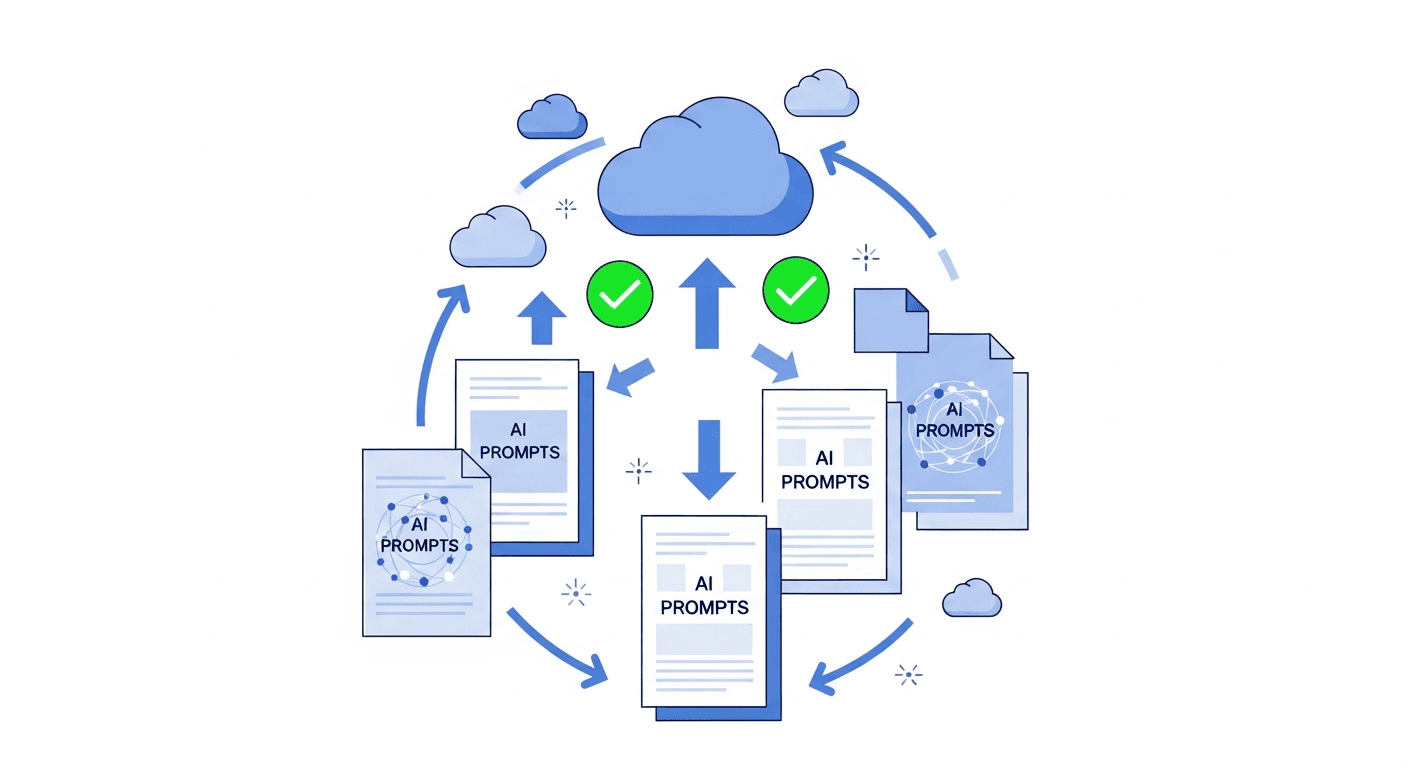
You've spent months building your AI prompt library. Hundreds of prompts, carefully refined and organized. Then one day - a sync error, an account issue, an accidental deletion - and they're gone.
This isn't hypothetical. Users lose prompt libraries every day due to:
- Cloud service outages
- Accidental account deletion
- Sync conflicts
- Security breaches
- Platform changes
- Simple human error
Your prompts represent hours of work and hard-won knowledge. They deserve protection. Here's how to back them up properly.
The 3-2-1 Backup Rule for Prompts
The classic backup rule applies to prompts too:
- 3 copies of your data
- 2 different storage types
- 1 copy offsite
For prompts, this might look like:
- Primary: PromptAnthology (cloud-synced)
- Secondary: Local export file (your computer)
- Offsite: Cloud storage backup (Google Drive, Dropbox, etc.)
Backup Methods by Storage Type
If You Use a Prompt Manager (PromptAnthology)
Automatic cloud backup: PromptAnthology automatically backs up your prompts to secure cloud storage. Your prompts are protected against:
- Device failure
- Browser issues
- Local data loss
Manual export: For additional protection, export your prompts periodically:
- Go to Settings > Export
- Choose format (JSON, CSV, or Markdown)
- Download the backup file
- Store in a separate location
Recommended schedule:
- Automatic: Always on (PromptAnthology handles this)
- Manual export: Weekly or after major additions
If You Use Notion
Native backup options:
- Export workspace as HTML or Markdown
- Use Notion's built-in page history (limited retention)
- Duplicate important databases periodically
Third-party backup:
- Notion Backups (automated exports)
- Notion2Sheets (exports to Google Sheets)
- Manual copy to secondary tool
Limitations:
- No automatic external backup
- Export formats can be messy
- History retention varies by plan
If You Use Text Files
File sync services: Store prompt files in synced folders:
- Google Drive
- Dropbox
- iCloud
- OneDrive
Version control: Use Git for version history:
# Initialize prompts repo
git init prompts

# Add all prompt files
git add .

# Commit changes
git commit -m "Backup: January 2026"

# Push to remote (GitHub, GitLab, etc.)
git push origin main
Local backup:
- Time Machine (Mac)
- Windows Backup
- External hard drive copy
Creating Your Backup Strategy
Step 1: Inventory Your Prompts
Before backing up, know what you have:
- How many prompts?
- Where are they stored?
- What format are they in?
- How often do they change?
Step 2: Choose Backup Locations
Select at least two backup destinations:
| Location Type | Examples | Pros | Cons |
|---|---|---|---|
| Cloud storage | Google Drive, Dropbox | Accessible anywhere | Requires internet |
| Local storage | External drive, NAS | Fast, no internet needed | Physical risk |
| Version control | GitHub, GitLab | Full history | Technical setup |
| Self-email exports | Simple | Not organized |
Step 3: Set a Schedule
| Prompt Activity Level | Backup Frequency |
|---|---|
| Daily additions | Weekly backups |
| Weekly additions | Bi-weekly backups |
| Occasional changes | Monthly backups |
Step 4: Automate Where Possible
Manual backups get forgotten. Automate:
For PromptAnthology:
- Cloud backup is automatic
- Set calendar reminder for manual exports
For file-based systems:
- Use sync services that backup automatically
- Set up automated Git commits
For Notion:
- Use third-party backup tools
- Schedule export reminders
Step 5: Test Your Backups
A backup you can't restore is worthless. Test regularly:
- Download a backup file
- Open it and verify contents
- Try importing to a fresh account (if applicable)
- Document the restore process
Export Formats and Their Uses
JSON (JavaScript Object Notation)
Best for:
- Full data preservation
- Importing to other tools
- Programmatic access
Example:
{
  "prompts": [
    {
      "id": "1",
      "title": "Code Review Prompt",
      "content": "Review this code for...",
      "tags": ["development", "review"],
      "created": "2026-01-15"
    }
  ]
}
CSV (Comma-Separated Values)
Best for:
- Spreadsheet viewing
- Simple data structure
- Bulk editing
Limitations:
- Multi-line prompts can be tricky
- Limited metadata support
Markdown
Best for:
- Human readability
- Documentation
- Version control with Git
Example:
# Code Review Prompt

**Tags:** development, review
**Created:** 2026-01-15

---

Review this code for:
1. Security vulnerabilities
2. Performance issues
3. Code style consistency
...
Recovery Scenarios
Scenario 1: Accidental Deletion
Prevention:
- Use a tool with deletion recovery (PromptAnthology has trash/recovery)
- Keep recent backup files
- Enable version history
Recovery:
- Check trash/recently deleted
- Check version history
- Restore from most recent backup
Scenario 2: Account Compromise
Prevention:
- Use strong, unique passwords
- Enable two-factor authentication
- Keep offline backup copies
Recovery:
- Secure your account immediately
- Check for unauthorized changes
- Restore from backup if needed
- Review what was accessed
Scenario 3: Service Outage
Prevention:
- Don't rely solely on one service
- Keep local copies of critical prompts
- Have offline access capability
Recovery:
- Wait for service restoration
- Use local backup to continue working
- Verify data integrity after restoration
Scenario 4: Data Corruption
Prevention:
- Multiple backup copies
- Different backup formats
- Regular backup verification
Recovery:
- Identify last known good backup
- Compare against current data
- Restore and verify
Backup Checklist
Use this checklist to audit your backup strategy:
Setup
- [ ] Primary prompt storage identified
- [ ] At least one backup location configured
- [ ] Export process documented
- [ ] Backup schedule established
Security
- [ ] Backup locations have access controls
- [ ] Sensitive prompts encrypted or secured
- [ ] Account security verified (2FA, strong passwords)
Process
- [ ] Backup schedule being followed
- [ ] Backups tested for restorability
- [ ] Backup process documented for team
Maintenance
- [ ] Old backups periodically cleaned up
- [ ] Storage space monitored
- [ ] Backup tools kept updated
Special Considerations
Sensitive Prompts
Some prompts contain confidential information:
- Encrypt backups containing sensitive data
- Limit backup storage to secure locations
- Audit who has access to backups
- Consider separate storage for sensitive prompts
Team Prompt Libraries
For shared prompt libraries:
- Designate backup responsibility
- Document restore procedures
- Test team-wide recovery
- Keep multiple admin accounts
Large Prompt Collections
If you have thousands of prompts:
- Consider incremental backups (only changes)
- Compress backup files
- Use efficient storage formats
- Monitor backup duration and storage use
Tools for Prompt Backup
PromptAnthology Features
- Automatic cloud backup
- One-click export (JSON, CSV, Markdown)
- Version history
- Trash recovery
General Backup Tools
- Backblaze: Continuous computer backup
- Google Drive/Dropbox: File sync and backup
- GitHub: Version control for text files
- Time Machine/Windows Backup: Local backup
Automation Tools
- Zapier: Automate export workflows
- IFTTT: Simple automation rules
- Cron jobs: Scheduled scripts (technical)
The Cost of Not Backing Up
Consider what losing your prompts would cost:
- Time to recreate: Hours to months depending on library size
- Lost refinements: Original prompts were iteratively improved
- Productivity impact: Working without your prompt library
- Knowledge loss: Insights embedded in prompts, gone
For most users, a basic backup strategy takes under an hour to set up. The alternative - losing everything - is far more expensive.
Action Steps
Today:
- Export your current prompts to a backup file
- Store in a secondary location
This week:
- Set up automated backup (if possible)
- Document your backup process
- Set a recurring backup reminder
Ongoing:
- Follow your backup schedule
- Test restores periodically
- Update strategy as prompt library grows
Your prompts are valuable. Protect them.
For a complete overview of prompt management - organization, versioning, team sharing, and the full system around backups - see our complete guide to prompt management.
Using PromptAnthology? Your prompts are automatically backed up to secure cloud storage. For extra protection, export your library regularly from Settings > Export.